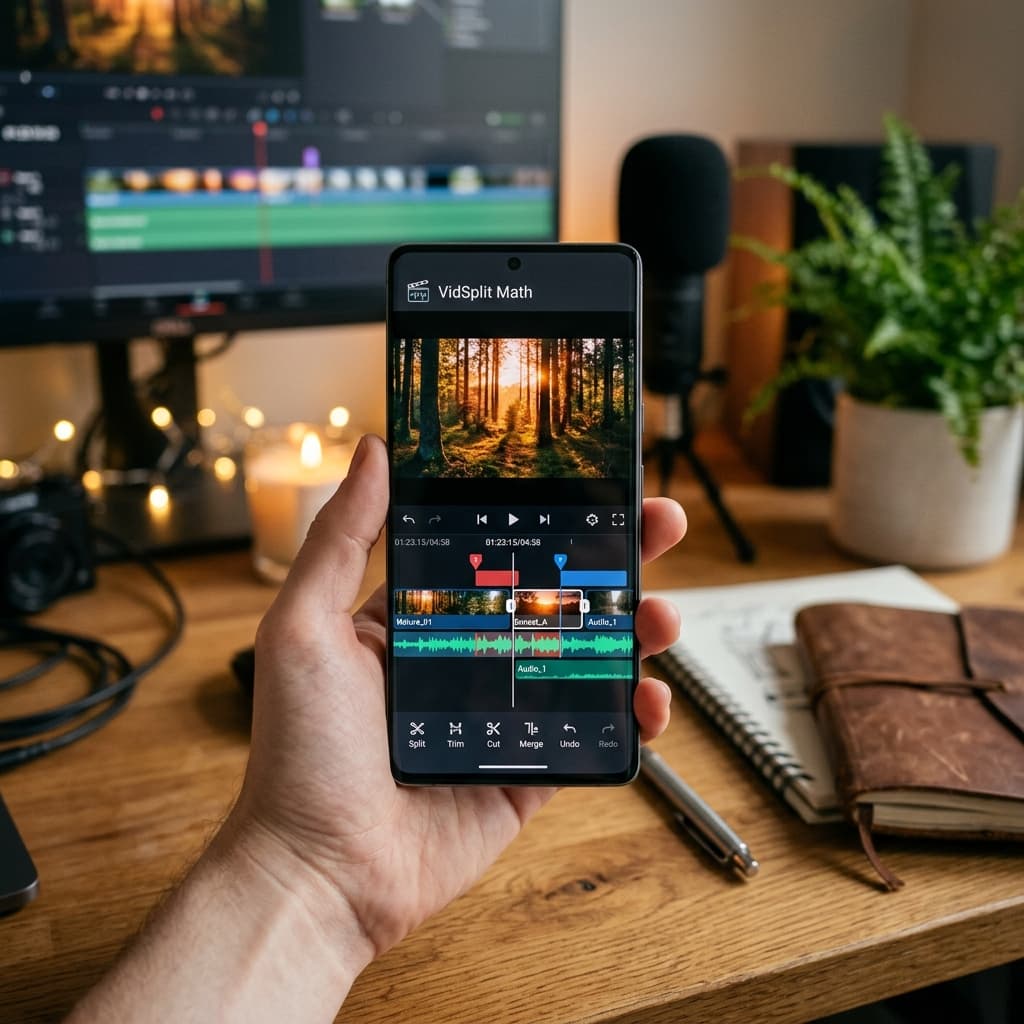
Every platform has a time limit. Status updates, Stories, Reels and Shorts all cut you off at some point, and a two-minute clip of your kid's school performance won't fit in one go. You could open a full video editor and cut it by hand, piece by piece. Or you could tell VidSplit Math "30-second parts, please" and let it do the rest. It's a small, focused app that does two things well: splitting and trimming — right on your phone.
In this article
Batch Split: one video in, perfect parts out
Batch Split is the reason most people install VidSplit. Pick a video, choose how long each part should be, and the app cuts the whole thing into equal segments in one go.
- Video presets — 15s, 30s, 45s, 60s, 90s, 2 minutes and 3 minutes.
- Custom length — type any number of seconds.
- Or choose the number of parts — "split this into 4" — and the app works out the length for you. A live hint shows roughly how long each part will be before you start.
- Progress you can see — a progress bar per segment, and a Cancel button that stops cleanly after the current part. Anything already cut is kept.
Precision Trim: keep only the good bit
When you want one clean clip instead of many, switch to Precision Trim. It gives you a timeline built for accuracy:
- Zoom the timeline from 1× to 10×, with tick marks every second, to find the exact moment.
- Set Start and Set End markers, with the trimmed length shown live.
- A looping preview plays just your selected range over and over, so you can check the cut before you commit.
- Trim & Save only becomes available once your end point is after your start point — no accidental empty clips.
Works with audio, too
VidSplit isn't just for video. Pick an audio file — a lecture recording, a podcast episode, a long voice memo — and split it into parts using audio-friendly presets: 1, 3, 6, 8, 10, 15 or 30 minutes, or any custom length.
Everything lands in one tidy album
Every part you make is saved into its own IdeaMathSplitter album on your phone, so your clips don't get lost among thousands of camera photos.
- Batch splits save automatically. Per-clip Save and Save All buttons are there too — and they're smart enough not to save the same clip twice.
- Share any part straight from the app to WhatsApp, Instagram or anywhere else through your phone's share sheet.
- A built-in gallery shows everything you've made, with separate Video and Audio tabs. Tap to play, share or delete.
Private, offline and watermark-free
All the cutting happens on your phone. Your videos are never uploaded to a server, there's no account to create, and there's no watermark on the clips you make. That also means it works without an internet connection — handy when you're on the move and want to post the moment you're back online.
How to split a video for your Status in four taps
- 1Install VidSplit Math from Google Play and open it.
- 2Tap to pick the video you want to split.
- 3Choose Batch Split and pick a length that fits where you're posting.
- 4Start. When it finishes, your parts are already in the IdeaMathSplitter album — share them in order.
Need more than cutting?
VidSplit is deliberately simple. If you want transitions, text, colour grading, green screen or multi-track editing, try our full editor, Vedit — it's private and on-device too.
Frequently asked questions
Is VidSplit Math free?
+
Yes. VidSplit Math is free to download on Android and adds no watermark to your clips.
Does VidSplit upload my videos?
+
No. Splitting and trimming happen entirely on your phone. Nothing is uploaded, and no account is needed.
Can I split a video into a specific number of parts?
+
Yes. Instead of choosing a length, enter how many parts you want and VidSplit calculates the length of each one.
Can VidSplit split audio files?
+
Yes. Pick an audio file and split it using presets from 1 to 30 minutes, or any custom length.
Where are my clips saved?
+
In an album called IdeaMathSplitter on your phone. You can also browse, play, share and delete them from the app's built-in gallery.